All appsUnisono

Clubs & music

Unisono

Bring club planning, messages, teaching and musical practice into one shared place.

Unisono connects the practical work of a club with its music: calendars, attendance, announcements, tasks, polls, files and chat, plus a music library and an interactive score player. It also supports private teaching groups for lessons and practice.

For music associations, member-based clubs, teachers and students.

Inside the app

Screenshots

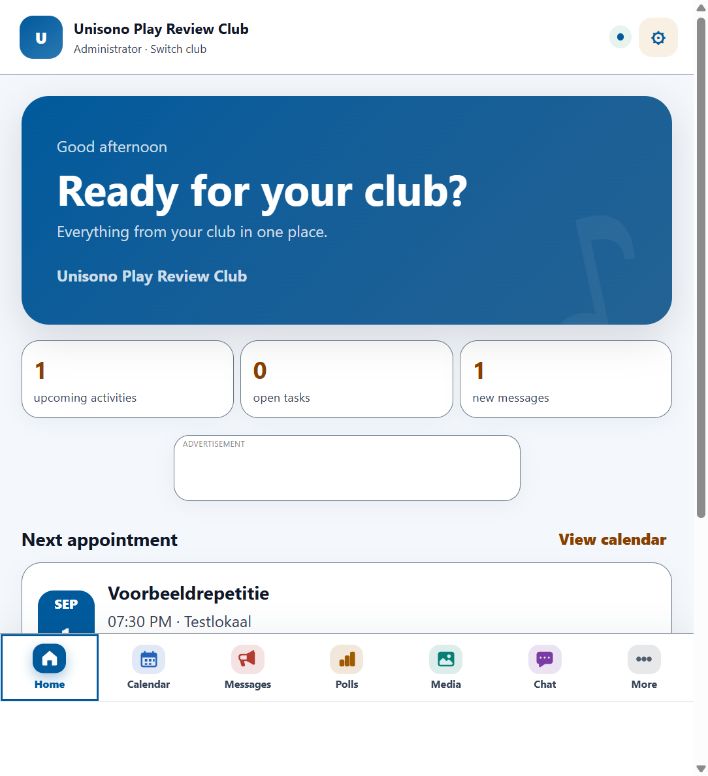
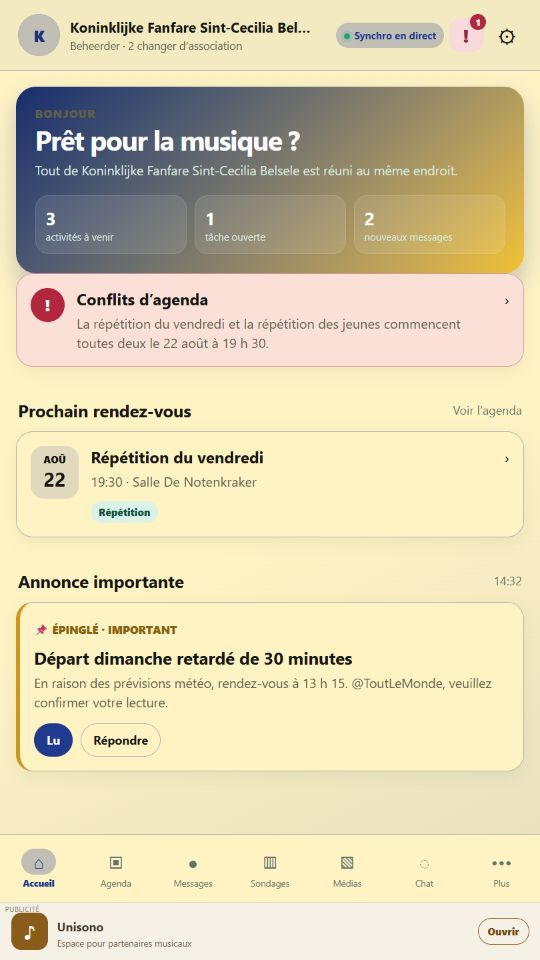
Home: Activities, tasks and messages for your group.
HomeActivities, tasks and messages for your group.
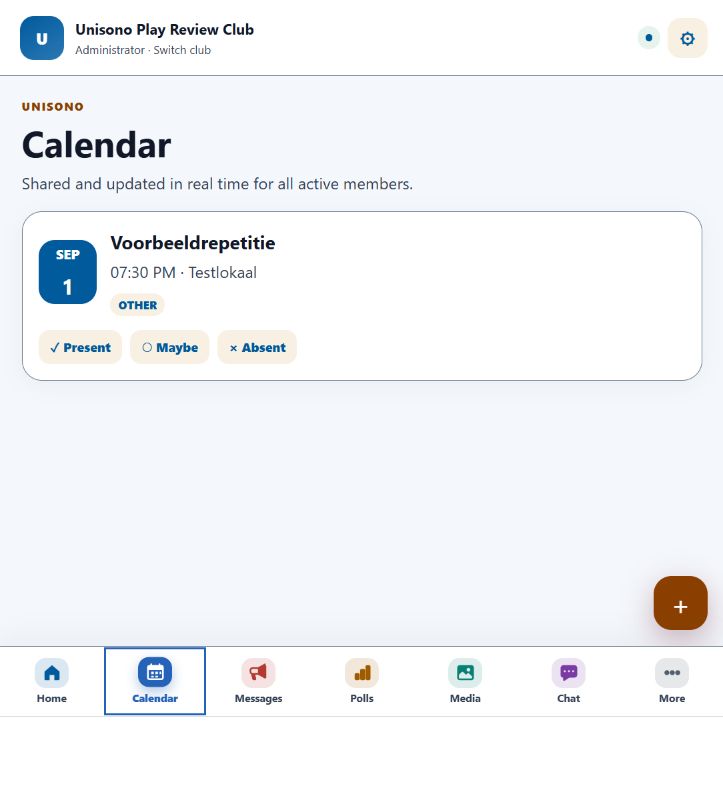
Shared calendar: Keep lessons, rehearsals and attendance together.
Shared calendarKeep lessons, rehearsals and attendance together.
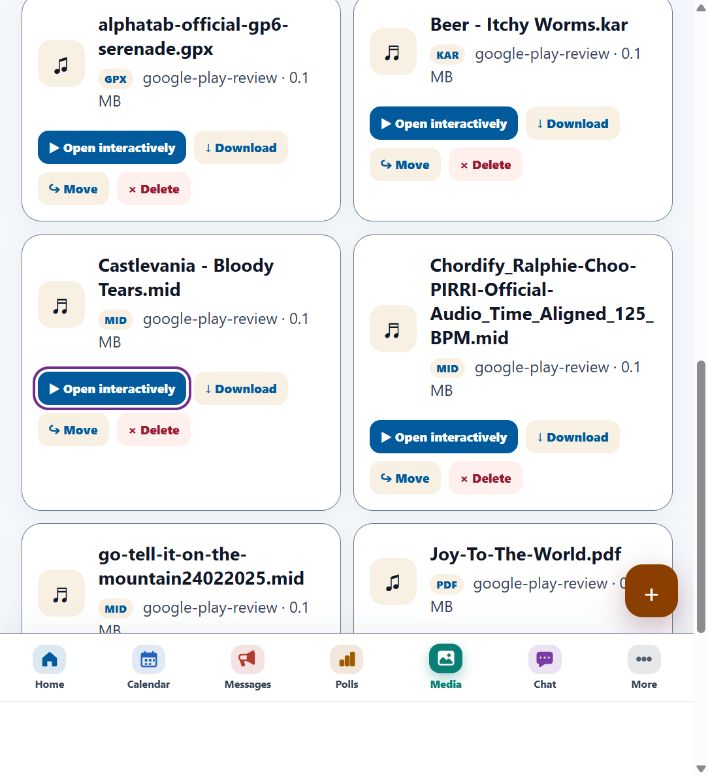
Music library: Organise scores, audio and supported music files.
Music libraryOrganise scores, audio and supported music files.
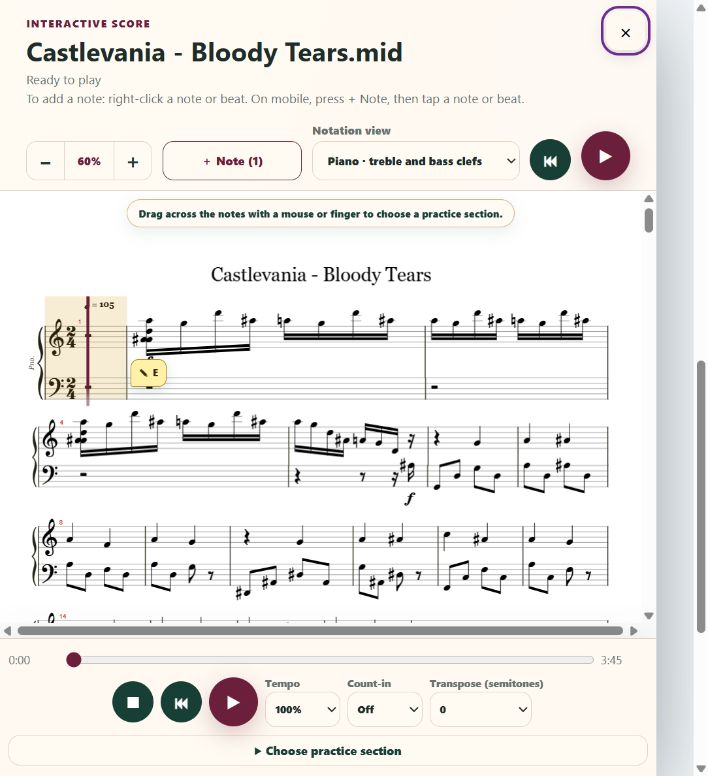
Interactive score: Annotate, repeat and practise a passage.
Interactive scoreAnnotate, repeat and practise a passage.
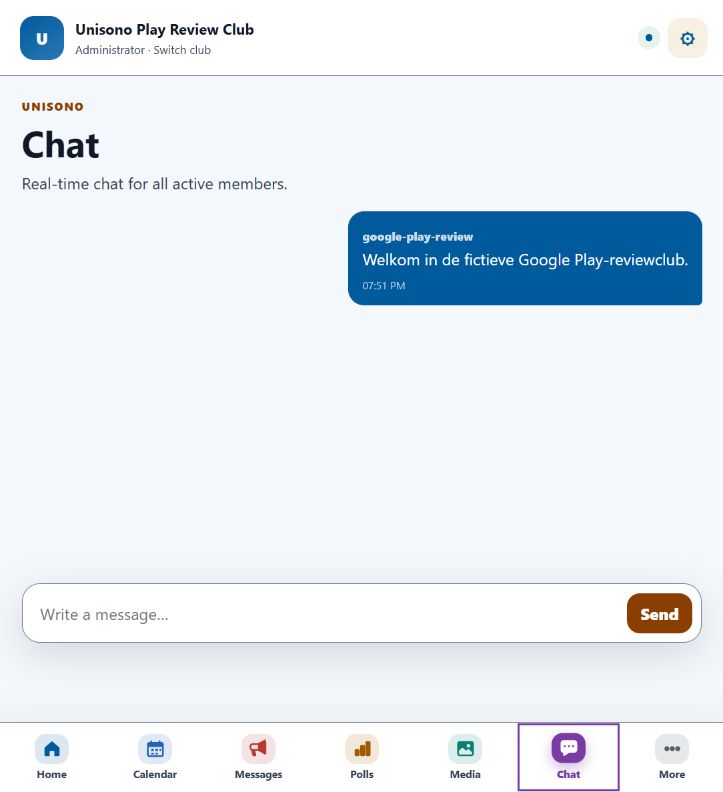
Group chat: Discuss practical questions with approved members.
Group chatDiscuss practical questions with approved members.

Screenshots show example group data. Only share files and music you have permission to use.

From the first step

Practical guides

  1. Start with the correct group
  2. Organise a rehearsal or lesson
  3. Practise a passage in the score player

GUIDE 01

Start with the correct group

Your account can belong to more than one group. Check the active group before posting.

  1. Open the Unisono web app and sign in. Follow the invitation from your teacher or club administrator.
  2. Wait for approval when it is required. Knowing a club's name does not grant access to its private content.
  3. Check that you are in the intended club or teaching group. Choose your interface language; this does not translate members' posts or documents.
  4. Open the calendar and review the next activity. Record your attendance where the activity asks for it.
  5. Read official announcements for confirmed details. Use group chat for follow-up questions rather than assuming a conversational suggestion changes the calendar.
GUIDE 02

Organise a rehearsal or lesson

A clear event and one official update help keep changed plans from disappearing in chat.

  1. An authorised organiser adds the event to the shared calendar with its date, time and practical details.
  2. Attach or share the relevant score or lesson material in the group's files or music library. Give the material a recognisable name.
  3. Use an announcement for instructions everyone needs. Use a poll when you are still collecting availability or preferences.
  4. Review attendance responses and assign practical tasks for equipment, preparation or transport where needed.
  5. If plans change, update the event and publish a clear announcement. Check the final calendar rather than relying on an older screenshot or message.

GUIDE 03

Practise a passage in the score player

Start with a supported MIDI or Guitar Pro file from your music library.

  1. Open the music file in the interactive player. Select the appropriate instrument or notation view when the file supports it.
  2. Adjust zoom and tempo to a comfortable reading and practice speed. Use the count-in when you need a lead-in.
  3. Drag across the score to select a practice section, then loop that passage instead of replaying the whole piece.
  4. Add a personal reminder, chord or fingering to a note or beat. On desktop use the right-click action; on mobile use + Note and tap the position.
  5. Return to the beginning or change the practice section when ready. Keep the original music file available if you need to compare the source.

Common questions

Answers for Unisono

Can iPhone and iPad users join?

Yes. The web app works in supported modern browsers. In Safari, Add to Home Screen gives you a convenient way to open it again.

Why can I not enter a club just by its name?

Groups are private. Authentication, invitations, approval and roles control access; a public club name is not a membership credential.

Can I use one account for several groups?

Yes. Check the selected group when switching between a club, ensemble or teaching environment so posts and files go to the intended people.

Does changing language translate all the music and messages?

No. Interface language changes app controls. Club content and uploaded documents remain as their authors supplied them.

Why does a file not show an interactive score?

Interactive notation requires a supported music format. PDFs and audio files serve different purposes. Check the file type and whether the relevant instrument data is present.

Where should I put an important schedule change?

Update the shared calendar and use an official announcement. Chat is useful for discussion, but the event should contain the final agreed information.

More detail

Features and background

One shared club home

Built around the rhythm of a real club.

Shared calendar

Lessons, practices, rehearsals, competitions, concerts, meetings and trips with attendance, reminders and conflict alerts between groups.

Focused communication

Announcements, urgent push notifications, mentions, read confirmations, polls, reactions and a separate live group chat.

Files, music and media

Upload and download documents, scores, MIDI, Guitar Pro, audio, photos and clips. Open supported files in the interactive player and add personal annotations directly to the music.

Tasks and transport

Assign practical responsibilities for equipment, keys, uniforms, flags or event materials and organize available carpool seats.

Clear club roles

Multiple administrators can approve members and manage the club. A public club name never grants immediate access by itself.

Your club identity

Choose the club logo, button colors, backgrounds and accents to match a band, team, chapter, society or association.

For music teachers

Lessons, students and music in one calm workspace.

A teacher can use the existing Unisono tools as a private lesson environment instead of spreading schedules, scores, recordings and messages across different cloud tools.

Individual and group lessons

Plan one-to-one lessons, ensembles and class moments in the shared agenda with attendance and reminders.

Practice tasks

Use tasks to give students clear exercises and keep upcoming work visible between lessons.

Scores and recordings

Share scores, MIDI, Guitar Pro, MP3, WAV, video and other lesson materials. Students can annotate the music and loop a difficult passage in the interactive player.

Questions and follow-up

Keep questions, announcements, polls and conversations connected to the same trusted group.

Separate teaching groups

Teachers can keep different students, ensembles or schools in separate groups and switch between them from one account.

Invitations by email

The teacher or administrator invites students using the existing email invitation. For a minor, that invitation is sent to a parent or guardian.

Why this app is being developed

It starts with a personal connection to music.

Unisono also comes from my own interests. I play in a fanfare myself, enjoy being musically involved and play several instruments. That makes the everyday organisation behind rehearsals, performances and parades very familiar to me.

General messaging services are useful for a quick conversation, but a music association needs something broader and more complete. Important dates should not disappear between unrelated messages, a changed meeting time should be clear to everyone, and scores, attendance, tasks and photos deserve a reliable place of their own.

Unisono started inside the musical community and also fits the daily work of music teachers who want one clear place for lesson planning, practice tasks, scores, recordings and contact with their students. The same calm structure remains useful for cheerleading teams, student organizations, chapters, societies and other member-based clubs.

Multilingual from the first note

The same club in eight interface languages.

Each member can choose an interface language. The club's own posts and documents remain exactly as the association writes them.

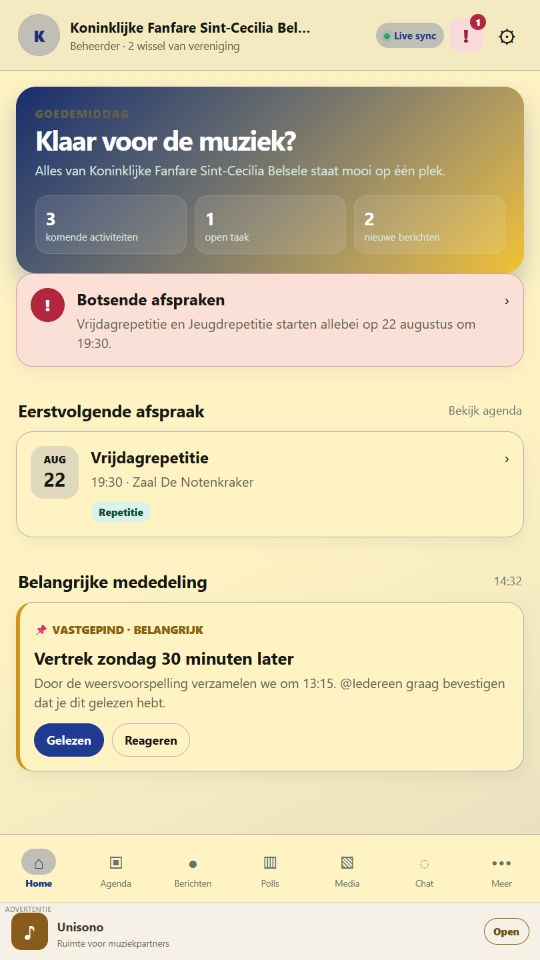
Unisono home screen in Dutch
Nederlands NL
Unisono home screen in French
Français FR
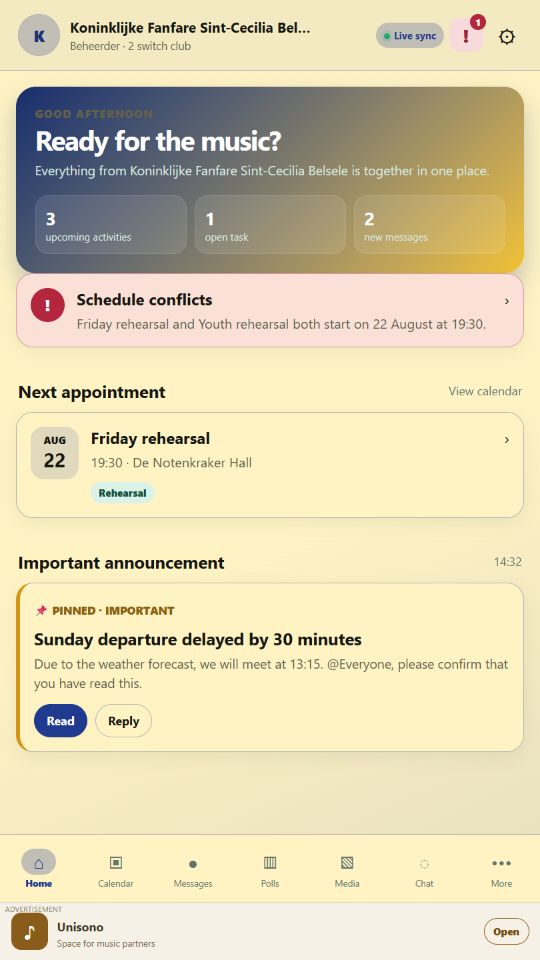
Unisono home screen in English
English EN
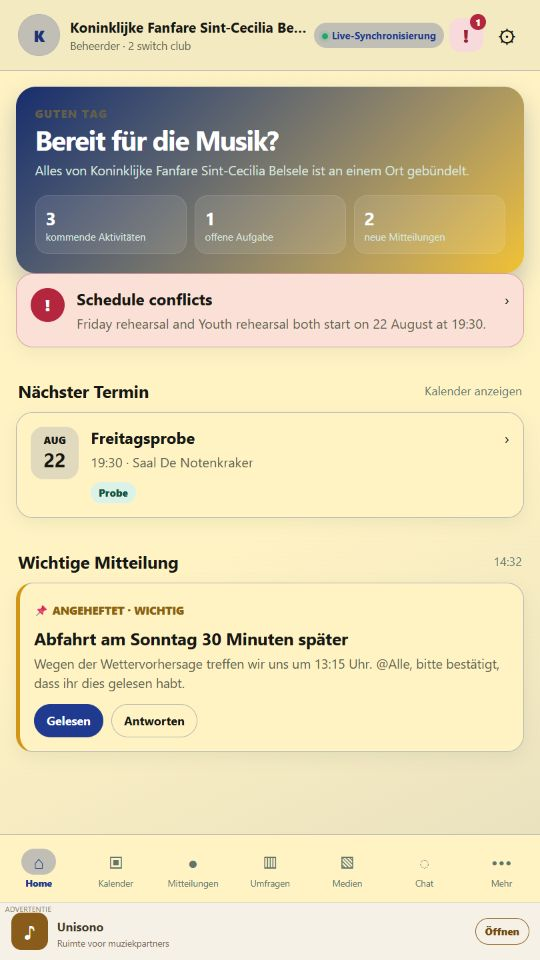
Unisono home screen in German
Deutsch DE
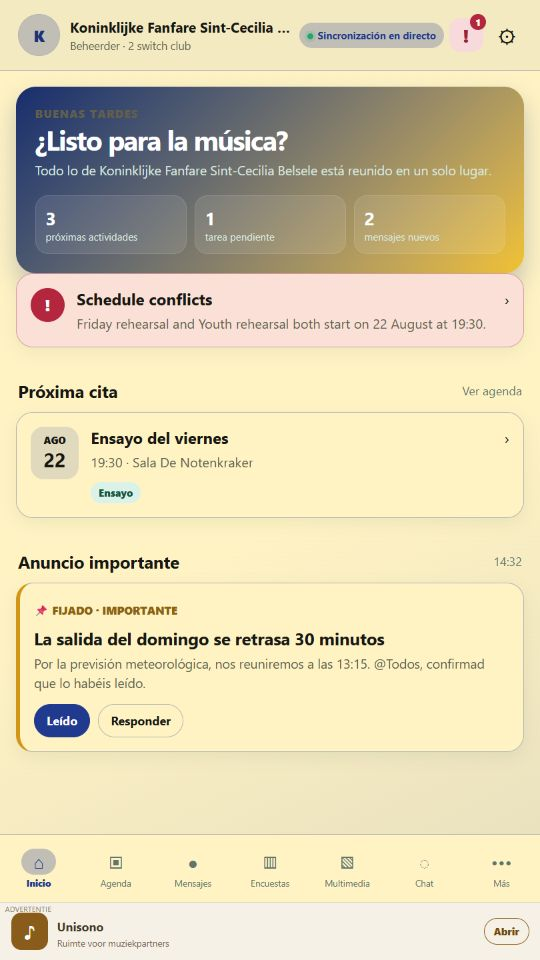
Unisono home screen in Spanish
Español ES
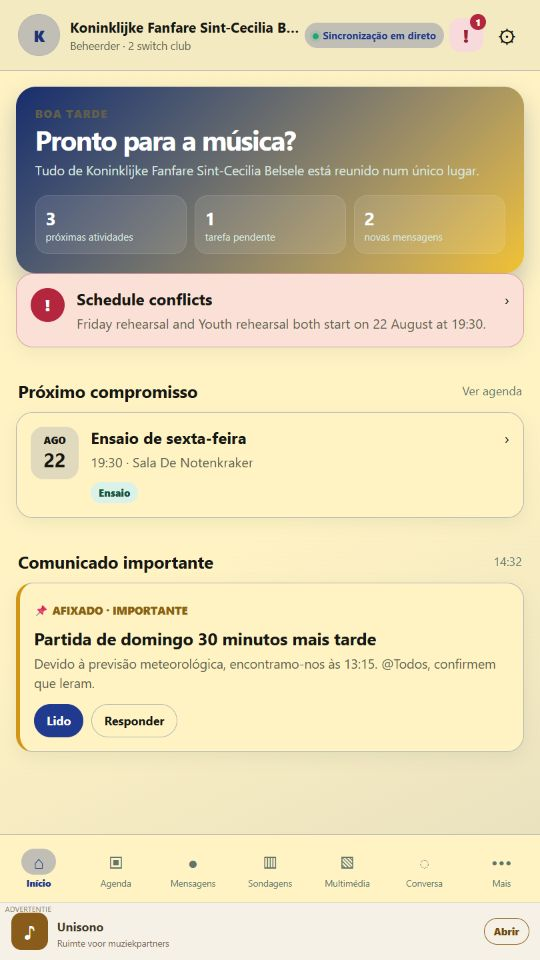
Unisono home screen in Portuguese
Português PT
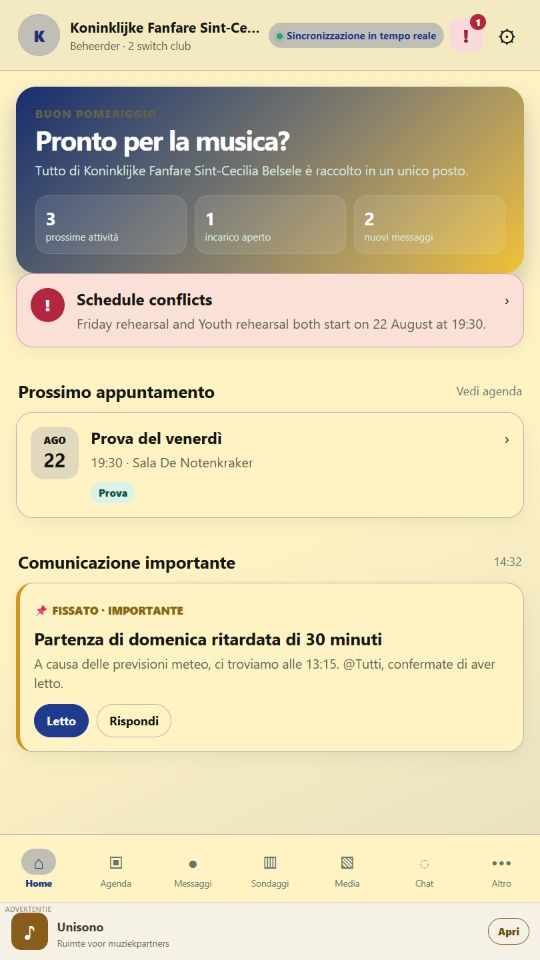
Unisono home screen in Italian
Italiano IT
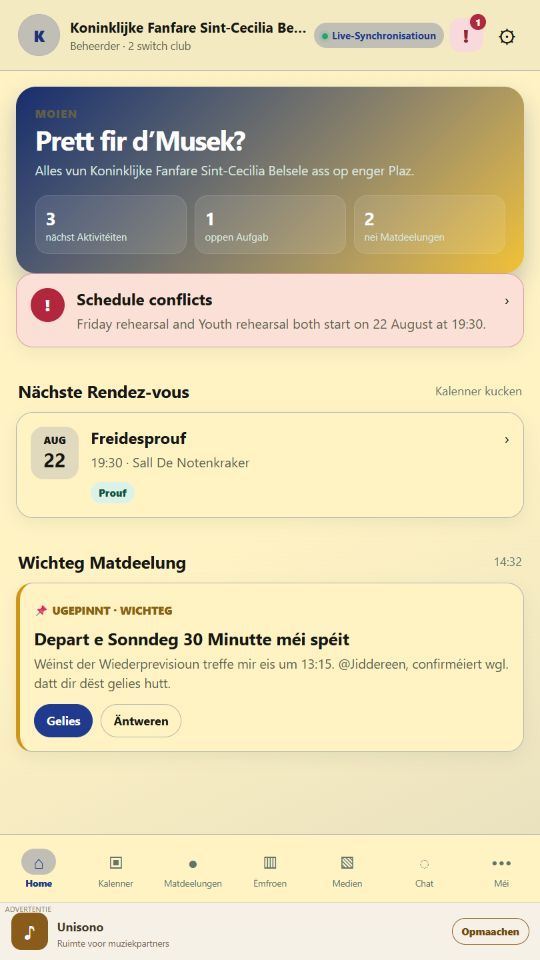
Unisono home screen in Luxembourgish
Lëtzebuergesch LB

Access and protection

One shared environment across supported devices.

Available

Web app

iPhone, iPad, Mac, Windows and other modern browsers can use the shared Unisono environment now.

Protected

Private club access

Authentication, approval by administrators, security rules and App Check protect the shared content.

Shared

Same group data

Members, teachers and students sign in to the same groups, roles, calendars, files and conversations.

Apple users keep full web access. Open Unisono in Safari and choose “Add to Home Screen” to use it like an app on iPhone or iPad.

Support & privacy

For help with Unisono, mention your app version, device and what happened. Do not send passwords, invitation codes or unnecessary personal information.

These guides describe the available workflow. Labels and access can differ by app version, language, platform or plan.