Know what is in your kitchen, find a meal and keep your shopping organised.
Your pantry is the starting point. Enter the ingredients you already have, then use Meal Maker to see which recipes match. Keep food quantities, shopping lists, personal recipes and your daily calorie log together.
For everyday cooking, individual households and connected families.
Meal Maker compares recipes with your saved stock and shows missing ingredients. Keeping your stock up to date makes these suggestions more useful.
Two ways to scan
Look up a product by barcode or photograph a receipt. Review recognised names and quantities before adding anything; recognition is not guaranteed.
Recipes and cooking
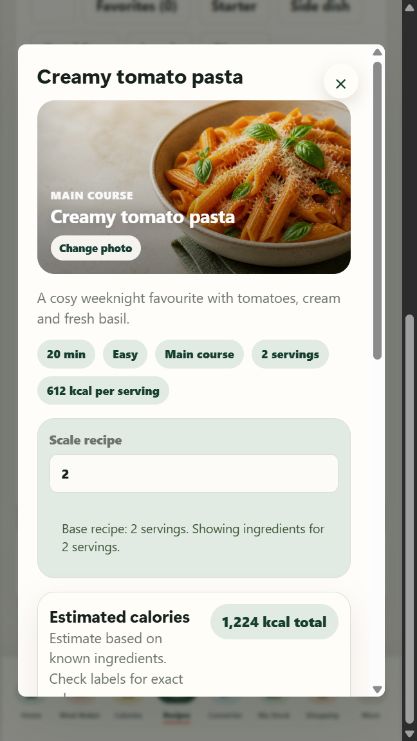
Save or import recipes, add photos, scale servings and follow preparation steps. Cook mode keeps the screen awake. A separate converter handles cooking units and temperature.
Connected households
Premium family sharing connects household members using email and an invitation code. Stock, shopping lists, saved recipes and planning can sync through the cloud.
Food and drink log
Add eaten or drunk products from your stock or log a food directly. The tracker records estimated calories and a daily total.
Personal settings
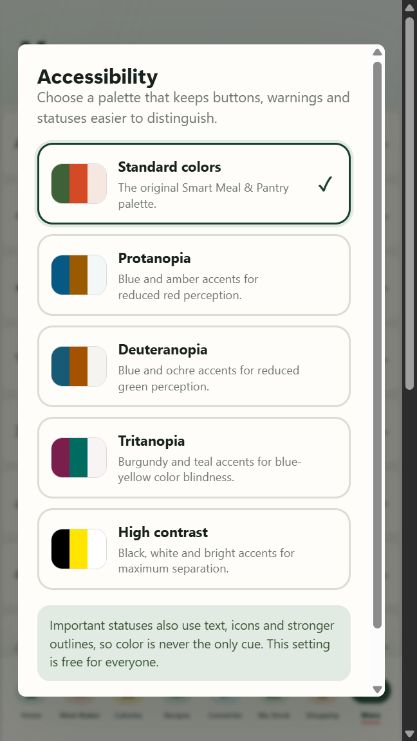
Choose your language, colour-vision palette and optional reminders. Festive backgrounds and occasion-related meal ideas appear during supported holiday periods.
Inside the app
Screenshots
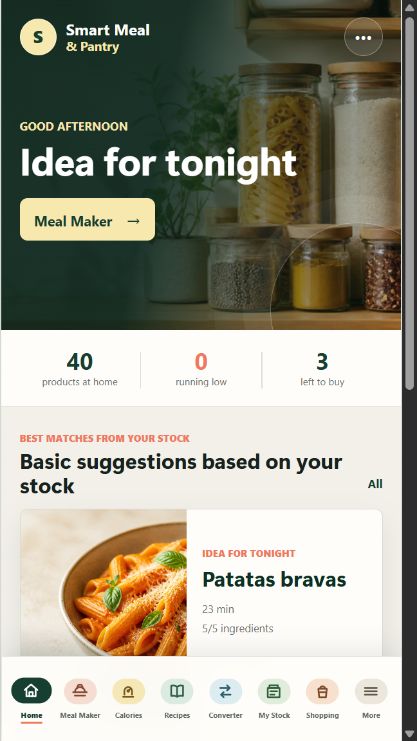
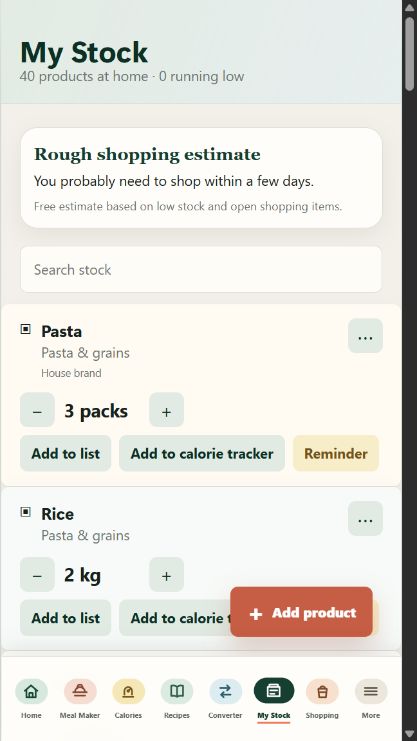
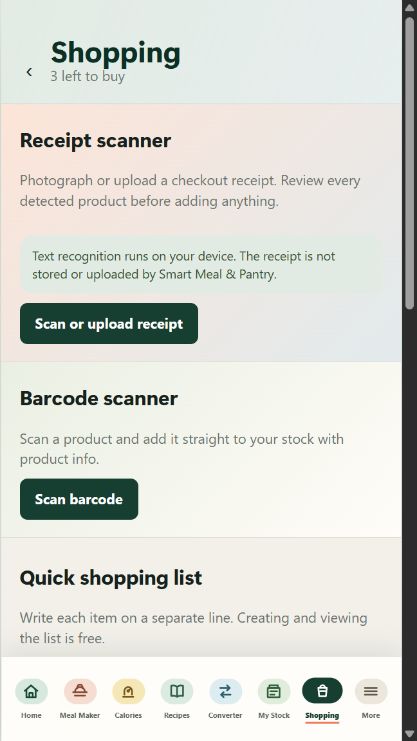
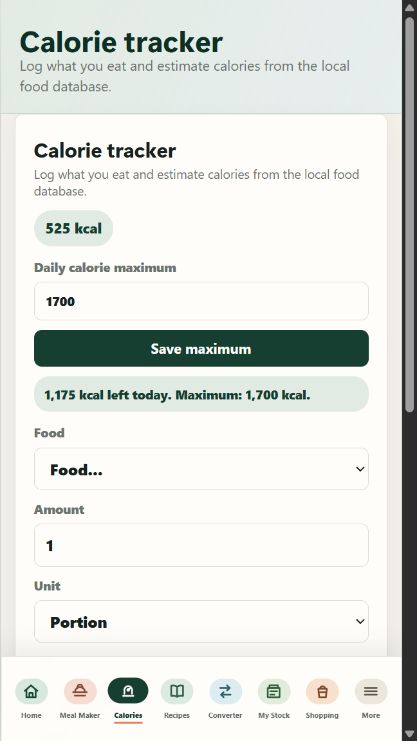
HomeYour stock summary and a starting point for tonight's meal.My StockQuantities, shopping actions and food logging beside each product.ShoppingReceipt scanning, barcode scanning and a quick shopping list.CaloriesFood and drink entries contribute to an estimated daily total.Personal recipesAdd a food photo and scale ingredient quantities for your servings.AccessibilityChoose a colour-vision palette or high contrast in settings.
Screenshots contain example data and may show Premium features. The calorie tracker provides estimates, not medical advice.
Start with a small, accurate stock list rather than entering every product at once.
Open My Stock and add the ingredients you plan to use: for example pasta, tomatoes, cream and garlic. Check the product name, quantity and unit. A packet is not the same as a gram.
For packaged food, scan the barcode. If the product is missing or the result is unsuitable, enter or correct its name yourself. Add fresh produce manually when no useful barcode is available.
Open Meal Maker. Compare the stock match and the missing-ingredient list. Make now and Almost possible serve different purposes: an almost-possible meal still needs ingredients or a suitable substitution you have checked.
Open the recipe and choose the number of servings. Read the scaled ingredients before cooking, then add anything missing to Shopping.
After cooking, update the products you used. Record food in Calories when you want it included in your daily log; browsing a recipe does not mean you ate it.
GUIDE 02
Turn a receipt into checked stock
The receipt scanner is a starting point for data entry, not a substitute for reviewing your shopping.
Open Shopping and choose the receipt scanner above the barcode scanner. Photograph the receipt flat, with the full text visible and without glare, or select an existing image.
Review each detected product. Receipts may abbreviate names, repeat discount lines or omit the pack size. Correct names and remove non-product lines.
Check quantities and units before confirming. A quantity on a receipt can describe packs rather than individual portions or weight.
After adding the selected products, open My Stock and check the result. Correct duplicates before using the updated stock for meal suggestions.
GUIDE 03
Share shopping and record what you eat
Set up sharing before a household member leaves for the shop.
The Premium owner opens More, then Family sharing, signs in and creates or connects the household. Share the invitation details privately with the intended family member.
The invited member installs the app, signs in and joins with the owner's email and invitation code. Check that both devices show the intended household before editing shared stock.
Add an item to the quick shopping list and allow both connected devices to sync online. If a device is offline, do not assume a new change has reached it yet.
To record a snack or drink, use the calorie action beside a stock product. Check the amount and unit before saving, then review the entry and daily total in Calories.
Common questions
Answers for Smart Meal & Pantry
Why should I enter my stock first?
Personalised matches depend on the ingredients saved in My Stock. The recipe library can still provide inspiration, but it cannot know what is in your cupboards until you enter or scan it.
Why is an ingredient not recognised?
Product databases and receipt recognition have gaps. Branded names, abbreviated receipt lines and different units can need correction. Check the product and use manual entry when necessary.
Is every recipe with a high match ready to cook?
No. Read the missing ingredients, quantities, serving count and dietary requirements. A percentage is a matching aid, not a guarantee that a recipe is suitable.
What needs Premium?
Optional monthly and yearly subscriptions unlock features such as unlimited personal recipes, advanced Meal Maker options, household profiles and preferences, export and backup, reminders and family sharing. Google Play shows current prices and renewal terms.
Does it work offline?
Core local pantry, recipe and logging tools can be used without an account. Online product lookups, online searches and cloud sharing require a connection.
Are nutrition and allergen results medical advice?
No. Values are estimates and filters are aids. Always check ingredients, labels and possible cross-contamination. The app does not replace professional guidance.
Support & privacy
For help with Smart Meal & Pantry, mention your app version, device and what happened. Do not send passwords, invitation codes or unnecessary personal information.